

Resolving Overlapping Routes
Updated
NetBird Routes enable peers to access external networks such as VPCs, LANs, or office networks. When multiple networks have overlapping IP ranges, NetBird's route selection feature lets you choose which routes to apply on the client side.
Route selection requires NetBird client version 0.27.4 or later.
Using Route Selection
You can select routes through the CLI or the desktop app.
CLI
List available routes:
netbird routes list
Example output:
Available Routes:

  - ID: aws-vpc-ireland
    Network: 172.17.0.0/16
    Status: Selected

  - ID: aws-vpc-ohio
    Network: 172.17.0.0/16
    Status: Selected
In this example, both routes have the same network range and are both selected, causing a conflict. To resolve this, select only one route:
netbird routes select aws-vpc-ireland
Running netbird routes select deselects all other routes by default.
Additional examples:
# Select all routes
netbird routes select all

# Select multiple routes
netbird routes select route1 route2

# Append a route without deselecting others
netbird routes select -a route3
GUI
Open the desktop app, switch to Advanced view, and select Resources. Use the Overlapping filter to narrow the list, then toggle each resource you want to use. You can also search by name and use Enable all or Disable all for bulk changes.
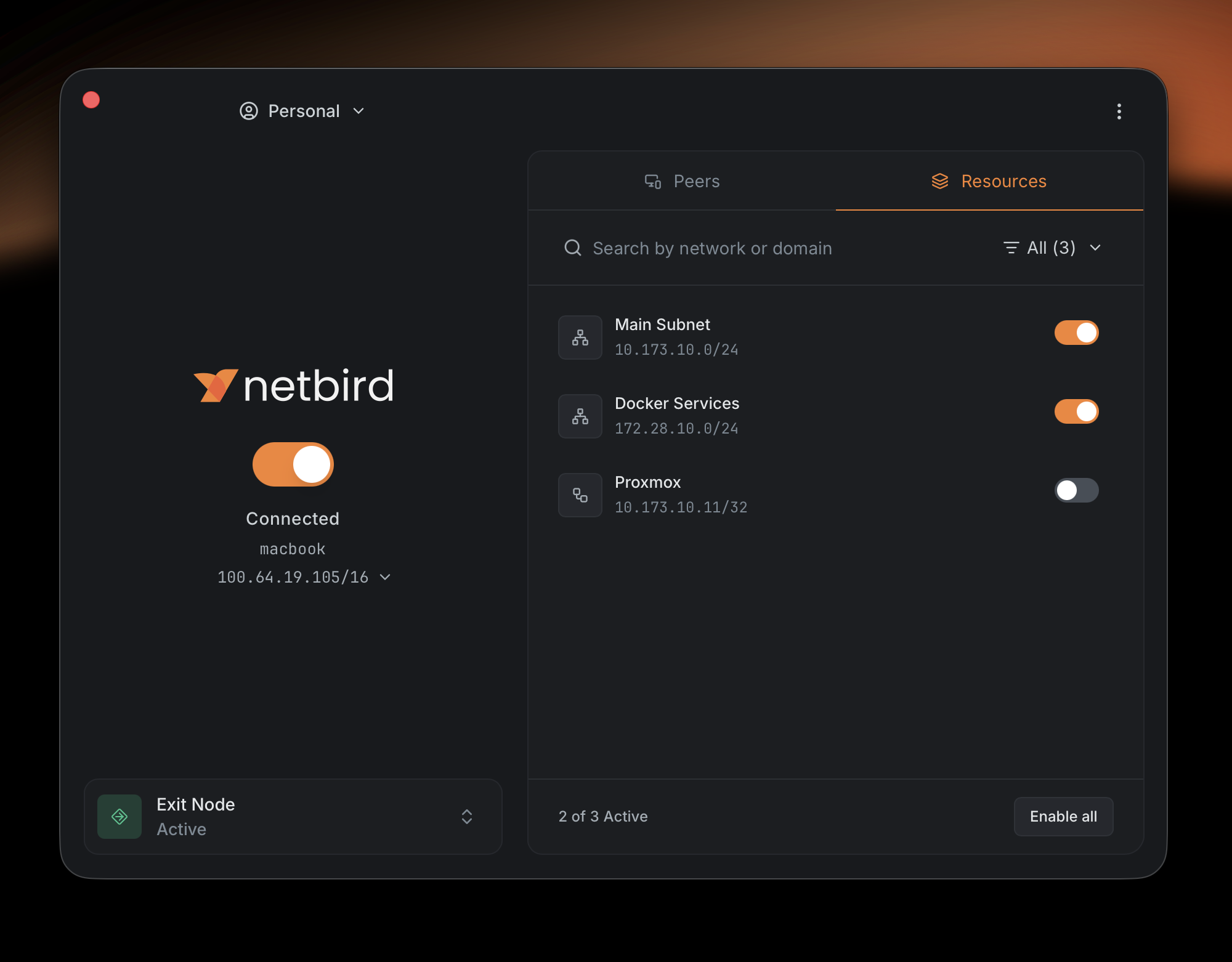
Enabling All Routes
Use netbird routes select all in the CLI or the corresponding button in the GUI to select all available routes, including any added in the future. This restores the default behavior.
Disabling All Routes
Use netbird routes deselect all in the CLI or the GUI button to deselect all routes, including any added in the future.