NetBird Desktop App
Updated
Starting with NetBird v0.75.0, the desktop app uses a Wails webview with a React frontend. The management server and wire protocol are unchanged, but the UI and the daemon need to be updated together. If their versions do not match, the app displays an update notification.
First Launch
On first launch, the welcome dialog points you to the NetBird icon in the Windows or Linux system tray, or the macOS menu bar. Choose whether to connect to NetBird Cloud or a Self-hosted deployment. For a self-hosted deployment, enter its management URL before connecting.
Click Connect in the main window or tray menu. NetBird opens your browser to authenticate the device. Once authorization completes, the desktop app connects and displays the device's NetBird IP address.
Default and Advanced Views
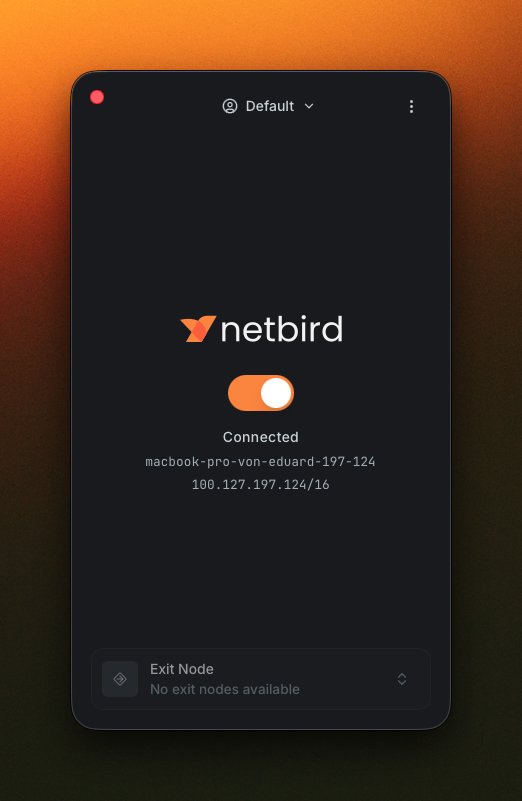
The main window opens in a compact Default view that shows the essentials: the active profile, connection status, hostname, overlay IP, and current exit node.
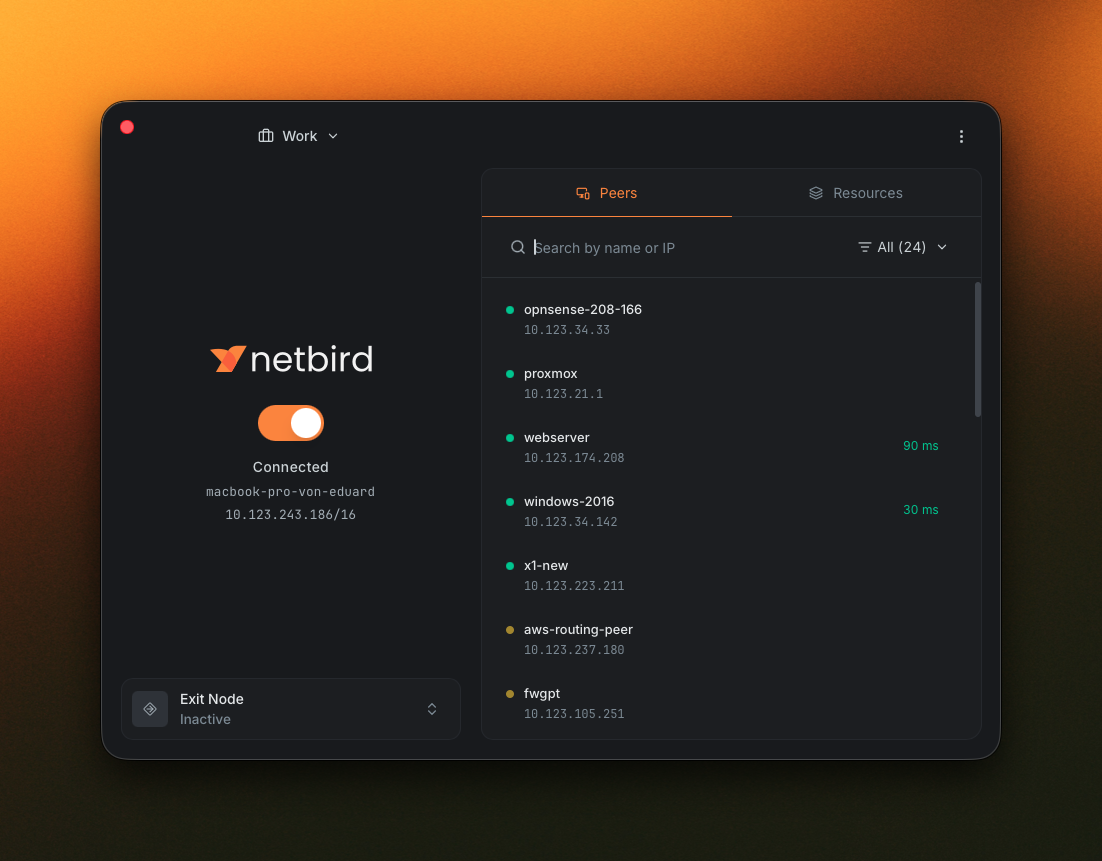
Switch to the Advanced view and the window expands with a peers and resources browser on the right. The Peers tab lists the peers in your network.
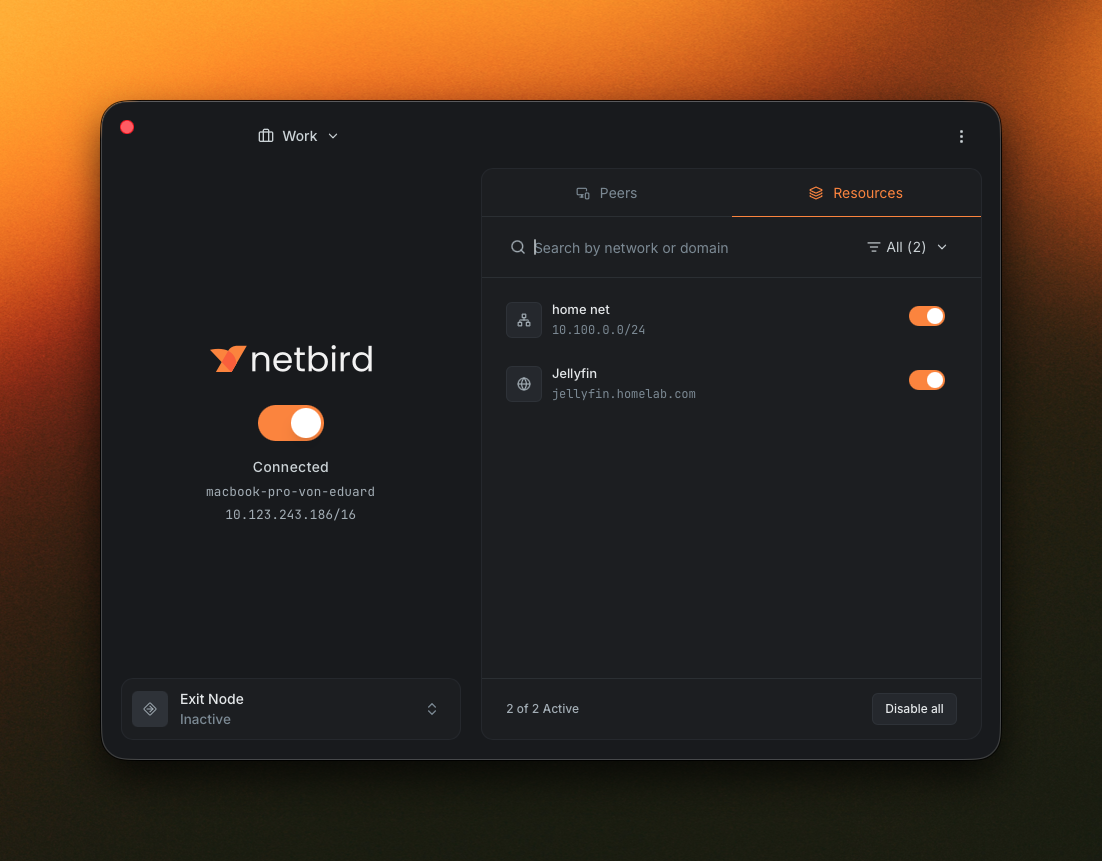
The Resources tab lists the network resources available to you. You can search resources, show only active or overlapping entries, toggle individual resources, or enable and disable all resources at once.
Peer Details
Clicking a peer opens a detail panel with the information you would otherwise look up from the CLI: address, status, route, connection details, and group membership.
A Reactive UI
Changes made by the NetBird daemon or the CLI are reflected in the app immediately. Connect or disconnect from the CLI and the toggle flips on its own. Switch profiles and the window catches up. There is no need to refresh or relaunch the app.
System Tray
A colored status dot sits next to the tray icon so you can read the state of your network without opening the app:
- Green when connected.
- Yellow when you need to log in.
- Grey when disconnected.
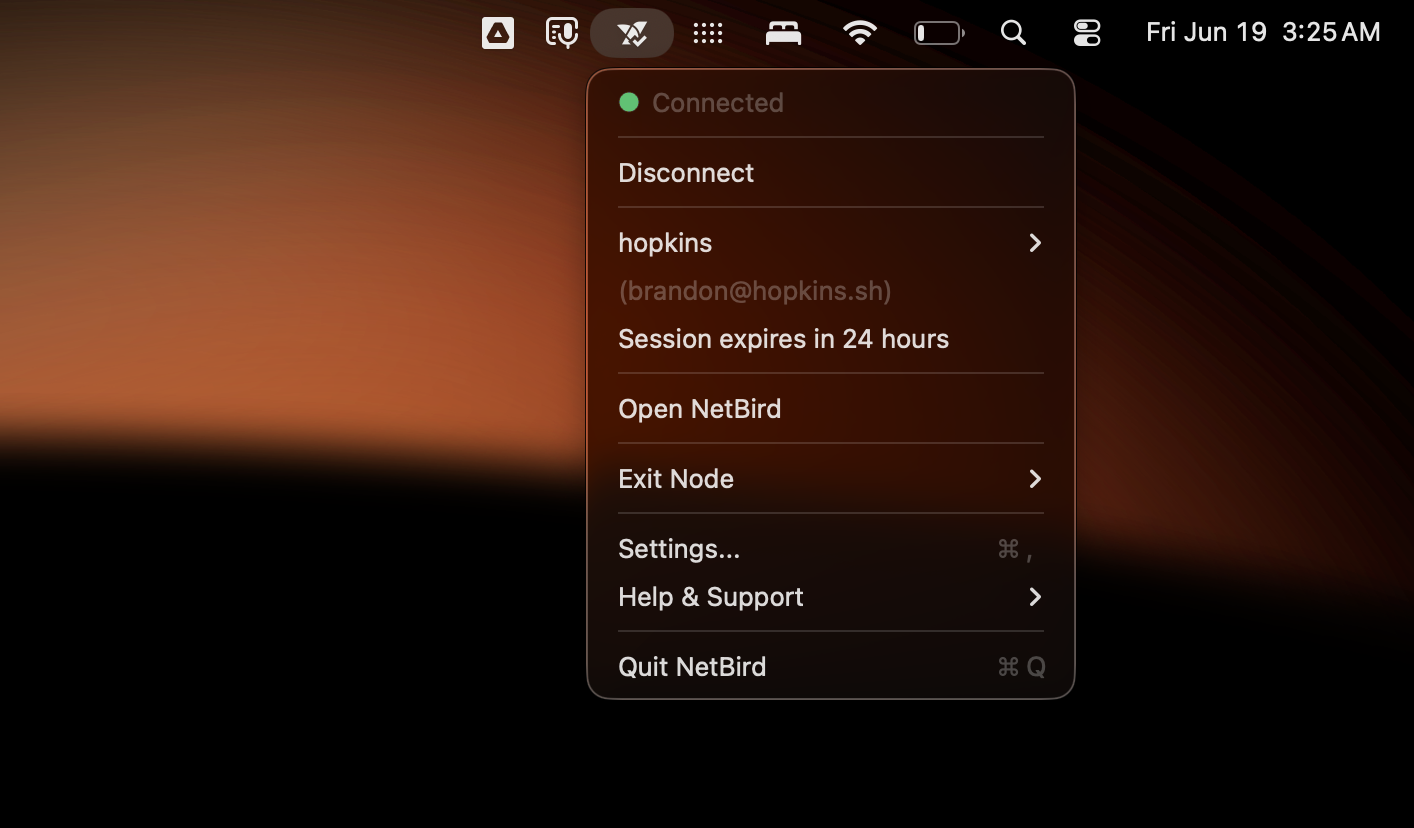
The tray menu also provides profile switching, session-renewal access, exit-node selection, Settings, Help & Support, and Quit NetBird. Closing the main window only hides it while the daemon and network connection continue running. Choosing Quit NetBird disconnects the daemon before the desktop app exits, unless Stay Connected After Quitting is enabled in Settings → General (requires client v0.76.2 or later). That setting is off by default; with it enabled, the connection keeps running after quitting and only stops when you disconnect it yourself.
Exit Nodes
The compact view shows the active exit node. Open the exit-node selector in the main window or tray menu to select another available exit node or return to a direct connection by deselecting it.
Settings
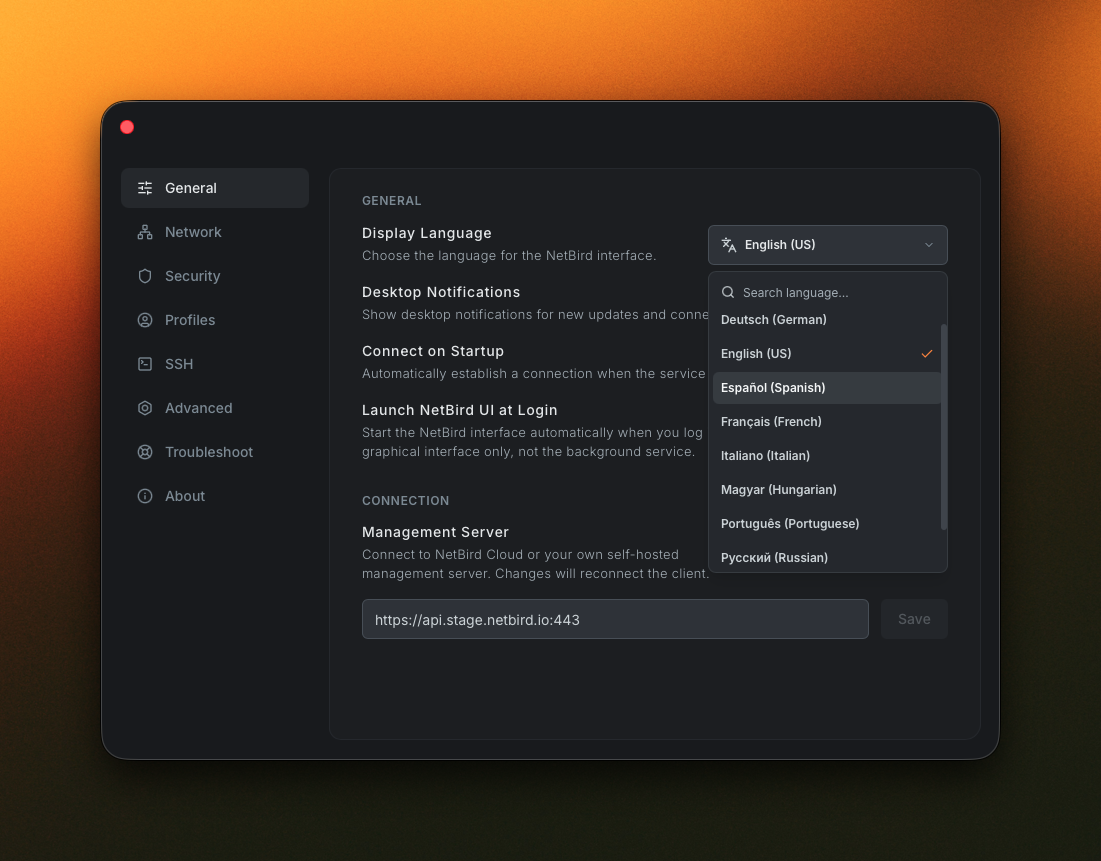
The settings page uses a tabbed layout that groups options by what they control. The tabs you see depend on your role and on any MDM policy in effect. The full set is:
- General for everyday toggles: Connect on Startup, Launch NetBird UI at Login, Stay Connected After Quitting, notifications, and display language.
- Network for connectivity, DNS, routes, and IPv6 settings.
- Security for inbound traffic, LAN access, and quantum-resistant encryption settings.
- Profiles for managing the accounts the app knows about. See Profiles.
- SSH for the native SSH server and its optional features. Some of these require privileges: see the note below.
- Advanced for log-level and custom configuration options.
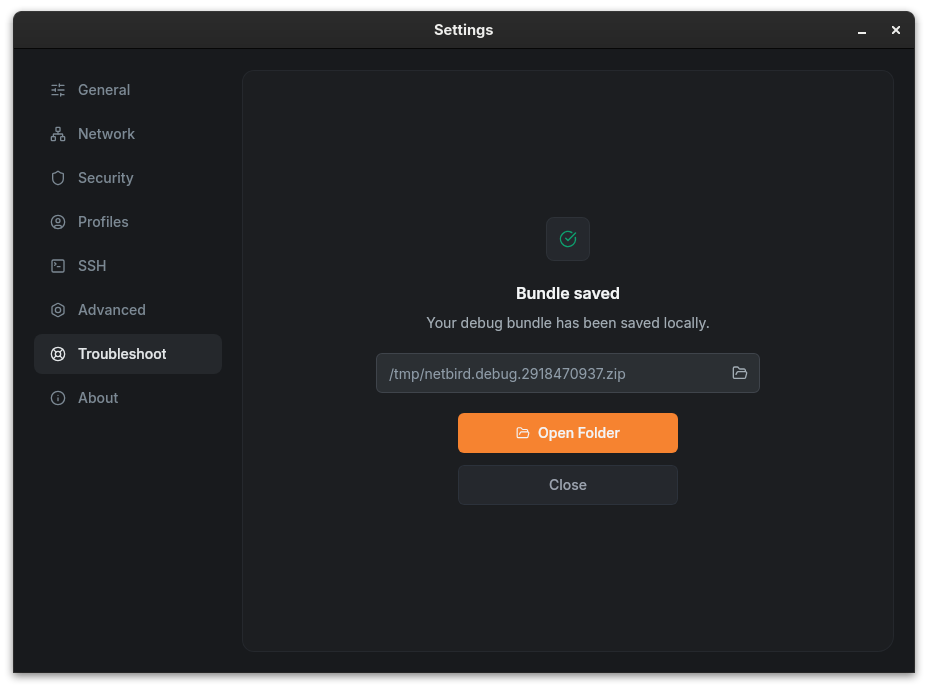
- Troubleshoot for capturing a debug bundle.
- About for version information, useful links, and updating the app.
The changes that decide who may obtain a shell on the machine, Enable SSH
Server, Enable Root Login and turning SSH authentication off, can only be
made by a privileged caller, because the background service runs as root on Linux and macOS
and as LocalSystem on Windows while the app runs as you. The app shows those
switches as unavailable and puts the equivalent command next to them: run it with
sudo on Linux and macOS, or from an elevated prompt on Windows. Without those
rights, an administrator has to run it. The SSH server alone can also be turned on
from MDM policy with allowServerSSH, which the client applies
itself; root login and SSH authentication have no policy key. A switch already in its safe
state stays operable: turning the SSH server off, turning root login off, and
re-enabling SSH authentication never require privileges.
Connect on Startup controls whether the background service reconnects when it starts. Launch NetBird UI at Login controls only whether the graphical interface opens when you sign in to the operating system. On a fresh desktop installation, launch at login is enabled once by default. Upgrades preserve the user's existing preference. Administrators can manage this behavior with disableAutostart.
MDM-Driven UI
If you roll out NetBird through MDM, the app reads the policy in effect on the device and adjusts itself to match, so users only see the options they are allowed to use. For deploying NetBird through an MDM provider, see the MDM deployment guides.
- Hide whole views.
disableAdvancedViewhides the Advanced view of the main window, so managed users only see the compact one. - Gate specific capabilities. Keys such as
allowServerSSHcontrol whether the corresponding toggle is available in the app. - Refresh in the background. Restrictions are re-read when the window becomes visible or the connection status changes, so MDM-pushed policy updates apply without a restart.
Profile management can also be locked down. See Disabling the Profiles feature for the --disable-profiles and --disable-update-settings options.
Session Expiration and Renewal
When a session is about to expire, the app shows a dialog with a countdown and two clear actions: renew or log out. An operating system notification fires ahead of time, and the session deadline remains visible across reconnects.
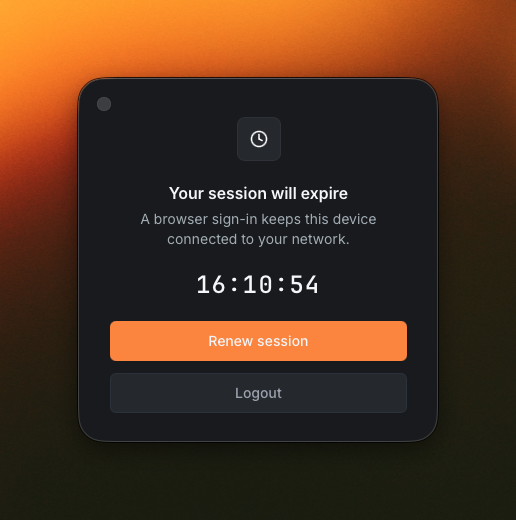
The renewal flow follows one rule: re-authenticating never closes an active connection. Renew session runs the browser sign-in flow while your existing connection stays up. Your tunnels, SSH sessions, and remote desktop sessions keep running through the renewal. Only the underlying session ticket changes.
Localization
You can switch languages from the Display Language picker in Settings → General, and the change applies instantly. The desktop app is available in English, French, Galician, German, Hebrew, Hungarian, Italian, Japanese, Portuguese, Russian, Simplified Chinese, Spanish, and Ukrainian.
Translations are a community effort on Crowdin. If your language is missing or a phrase reads incorrectly, join the project and translate there. Crowdin syncs finished translations into the NetBird repository, so please don't open pull requests that edit the translation files directly.
Capturing a Debug Bundle
The Troubleshoot tab can capture a debug bundle that collects daemon and UI logs in one step. You can collect new trace logs for 1–30 minutes, cycle the connection, include a packet capture and system information, anonymize sensitive data, and either upload the result to NetBird or keep it locally. See Troubleshooting the client for the complete flow.